

Follow the instructions below to install the Decore-ative Specialties Door Catalog into CABINET VISION. To download the latest Decore-ative Specialties Door Catalog, click CABINET VISION Downloads.
Instructions
- Open CABINET VISION and click the Utilities tab at the top.
- Click "Setup Package".
- Select "Import". Then, click the folder icon shown below.
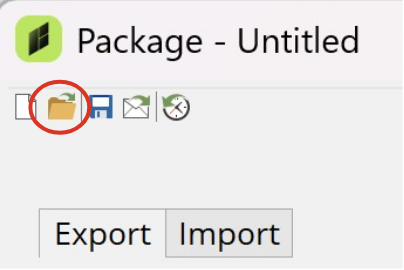
- Select the Decore-ative Specialties Door Catalog file from your computer and click "Open".
Note: The file will appear under "Setup Package" in CABINET VISION with a yellow dot. This indicates that the item does not currently exist in CABINET VISION.
- Click "Import Package" on the bottom left.
Note: CABINET VISION may display,"Not Responding". However, the system is processing and may take a moment to import.
- Once the import is complete, click "Close" at the bottom right.
Note: The Decore-ative Specialties Door Catalog is now installed in CABINET VISION under "Door Catalog Selections". You can now select door styles under "Job Properties".
- Click "File" at the top left and select Exit CABINET VISION.
- Reopen CABINET VISION. Click "File" at the top left and select "New" to begin a new job.
- Select "Cabinet" under Job Properties.
- Then, click the three dots next to the style.
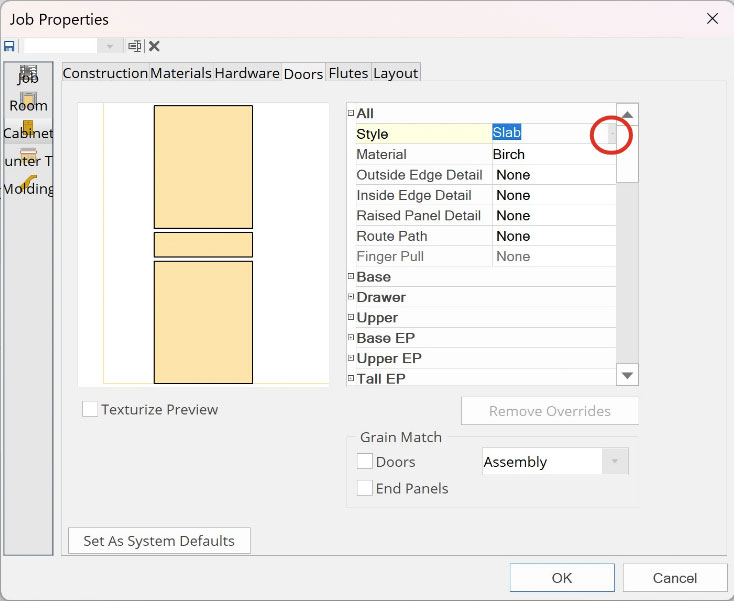
- Select your desired Door Catalog from the drop down menu.
More CABINET VISION Support Articles
CABINET VISION Downloads
Install the Decore-ative Specialties Button into CABINET VISION
Edit CABINET VISION Import Preferences in Anytime Online
Import a CABINET VISION Job into Anytime Online
What is CABINET VISION?
CABINET VISION Support
For additional assistance, please contact Sarah Nicholls at snicholls@decore.com.