

This article explains the process of installing the Decore-ative Specialties Button in CABINET VISION®, which launches Decore.com and creates the report that gets imported into Anytime Online for ordering.
Instructions
- Download the Decore-ative Specialties Button from the article CABINET VISION Downloads.
- Once downloaded, right click the zip file and choose "Extract". The following four files will appear.
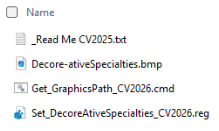
- Click the file "Get_GraphicsPath_CV2026.cmd".
Note: A security warning may appear asking if you want to run this software. Select "Run".
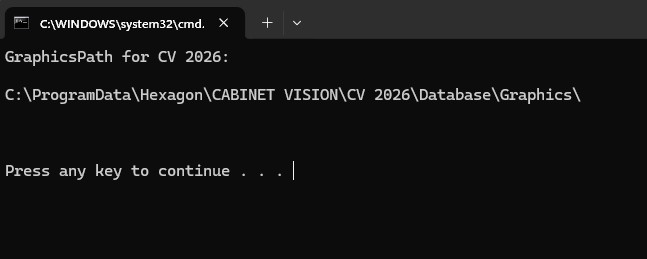
- Once the following screen appears, press any key to continue.
- Go back to the downloaded zip file. Copy the "Decore-ativeSpecialties.bmp" file. Then on your computer, open the Cabinet Vision "Database" folder and click "Graphics".
Note: For most installations, this is usually where the folders can be found on your computer C:\ProgramData\Hexagon\CABINET VISION\CV 2026\Database\Graphics
- Paste the "Decore-ativeSpecialties.bmp" file into the Graphics folder.
- Go back to the downloaded zip file. Double click "Set_DecoreAtiveSpecialties_CV2026.reg".
Note: A security warning may appear asking if you want to run this software. Select "Run".
- Two "Registry Editor" messages will appear. Click "Yes" and "OK".
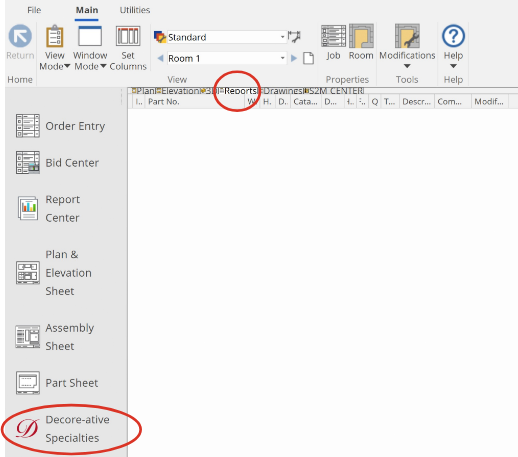
The Decore-ative Specialties Button is now installed in CABINET VISION under the Reports tab. This button launches Decore.com and creates the report that gets imported into Anytime Online for ordering.
More CABINET VISION Support Articles
Install the Decore-ative Specialties Door Catalog into CABINET VISION
Edit CABINET VISION Import Preferences in Anytime Online
For additional assistance, please contact Sarah Nicholls at snicholls@decore.com.