

After setting up CABINET VISION, configure your CABINET VISION Import Preferences in Anytime Online. This article explains each preference option and offers recommendations for your settings.
Once logged into Anytime Online, hover over "My Account" in the top navigation and click "Manage Account" from the drop down menu. Then, select "Update My User Profile". Edit Import Preferences and click "Submit" once complete.
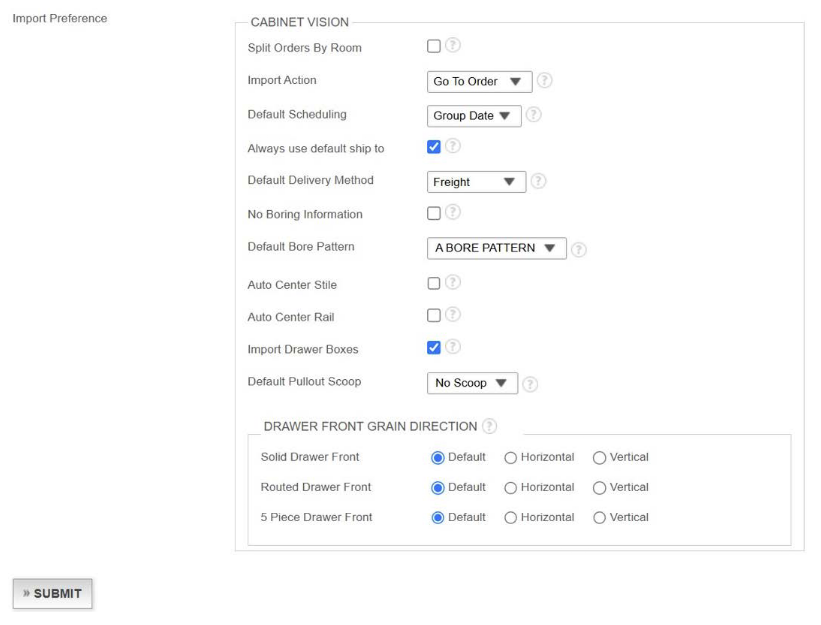
Split Orders by Room
When this option is selected, each room is imported as a separate order. When it is not selected, all rooms are imported as a single order. Regardless of this setting, Anytime® Online displays the order by room.
Import Action
After importing the "Report.sql" file, the order will display in Anytime Online based on the selections listed below. Choose from the following:
- Go to Order – This will take you to the beginning of the order in Anytime Online.
- Review Order – This will take you directly to the order's Review page in Anytime Online.
- Submit Order – This will completely submit the order without any review.
Note: We recommend "Go to Order."
Default Scheduling
This option is similar to scheduling a shipment in Anytime Online. Choose from the following:
- Not Set – Do not schedule.
- Best Date – Select the best date for all product groups (Products will most likely ship separately).
- Group Date – Select the latest date based on all product groups (All products are shipped together).
Note: We recommend "Group Date" to ship the entire order together.
Always Use Default Ship To
This option will automatically ship to the "Default Ship To Address" that Decore-ative Specialties has on file for each customer.
Note: We recommend "Default Ship to Address" unless you have multiple shipping locations.
Default Delivery Method
This option will set your order's default method of delivery. Choose from the following:
- Freight (or "Our Truck", if applicable)
- Will Call
- Small Parcel
No Boring Information
When selected, bore location information will not be imported. If it is not selected, the import will upload the bore location.
Default Bore Pattern
Select a bore pattern from the drop down menu, if you order Decore-ative Specialties doors machined for hinges. If you do not, make sure to check the box above for "No Boring Information".
Note: Learn about bore pattern options for concealed hinges.
Auto Center Stile
When selected, a center stile is added to doors over the predetermined width.
Note: We recommend not selecting "Auto Center Stile". We recommend reviewing order notifications in Anytime Online.
Auto Center Rail
When selected, a center rail is added to doors over the predetermined height.
Note: We recommend not selecting "Auto Center Rail". We recommend reviewing order notifications in Anytime Online.
Import Drawer Boxes
When selected, drawer boxes will import from CABINET VISION.
Note: There is not currently a Decore-ative Specialties drawer box configuration in CABINET VISION at this time. You will need to edit the order after importing and select the desired drawer box style, material, finishing, clips and notch. All drawer box sizes will import automatically, and once the style and material have been selected, the order will calculate correctly.
Default Pullout Scoop
Note: We recommend selecting "No Scoop". Once in Anytime Online, you can edit and add a scoop, when needed.
Drawer Front Grain Direction
This setting determines the grain direction of your drawer fronts. Choose from the following:
- Default – Use the door style's default grain direction.
- Horizontal – Always make the grain direction horizontal.
- Vertical – Always make the grain direction vertical.
Make selections for the following:
- Solid Drawer Front
- Routed Drawer Front
- 5-Piece Drawer Front
Note: We recommend "Default" for each drawer front type.
More CABINET VISION Support Articles
Install the Decore-ative Specialties Door Catalog into CABINET VISION
Install the Decore-ative Specialties Button into CABINET VISION
For additional assistance, please contact Sarah Nicholls at snicholls@decore.com.