

View the following instructions to learn how to add both Standard and Full Size 5-Piece Drawer Fronts to the same order in Anytime Online. For more details on how to begin an online order, visit the Get Started Guide: Submit Orders on Anytime.
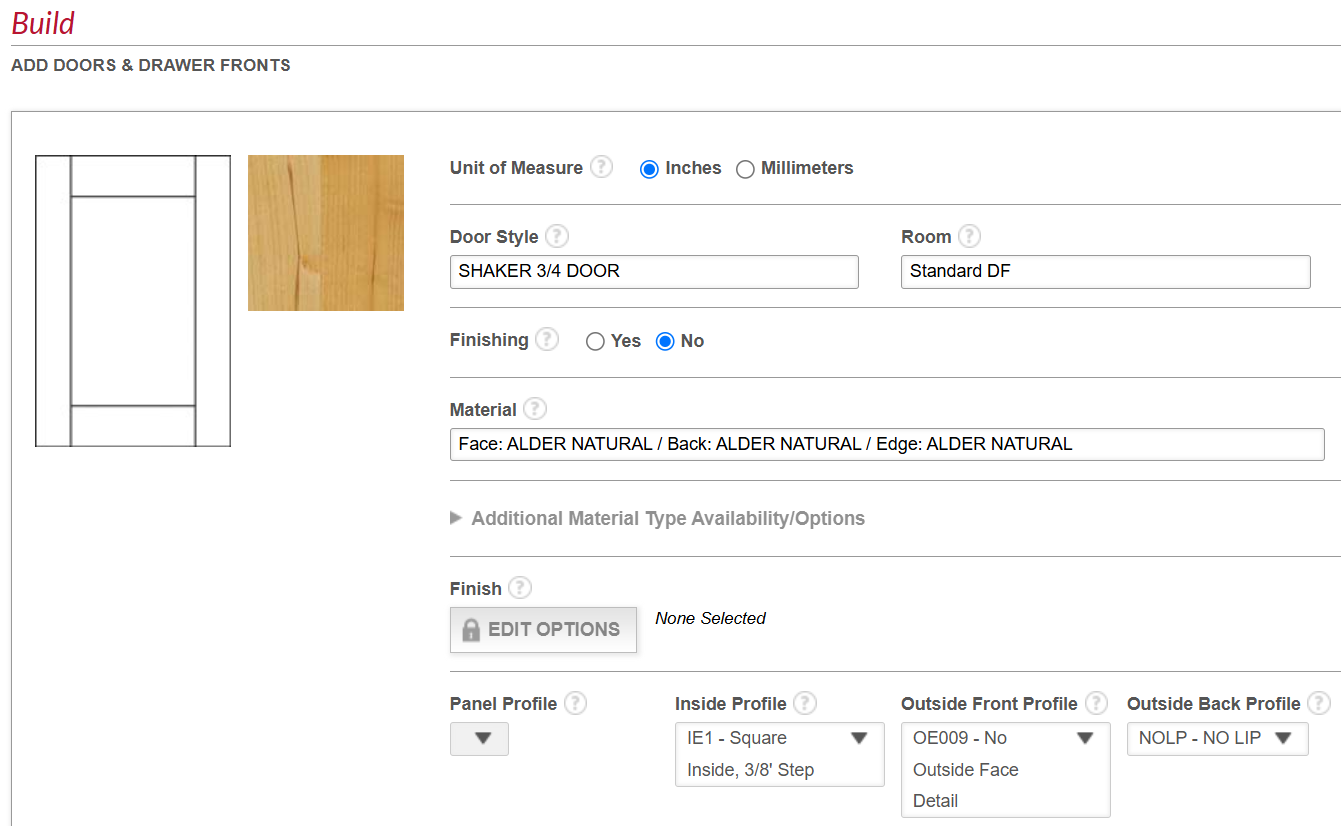
- After selecting Add Doors and Drawer Fronts on the main order screen, begin creating your design by selecting the Door Style, Material, and other specifications that are applicable.
We suggest that you type "Standard DF" in the field titled "Room" to help differentiate the two styles.
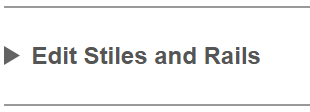
- Next, click the drop down arrow to the left of "Edit Stiles and Rails".
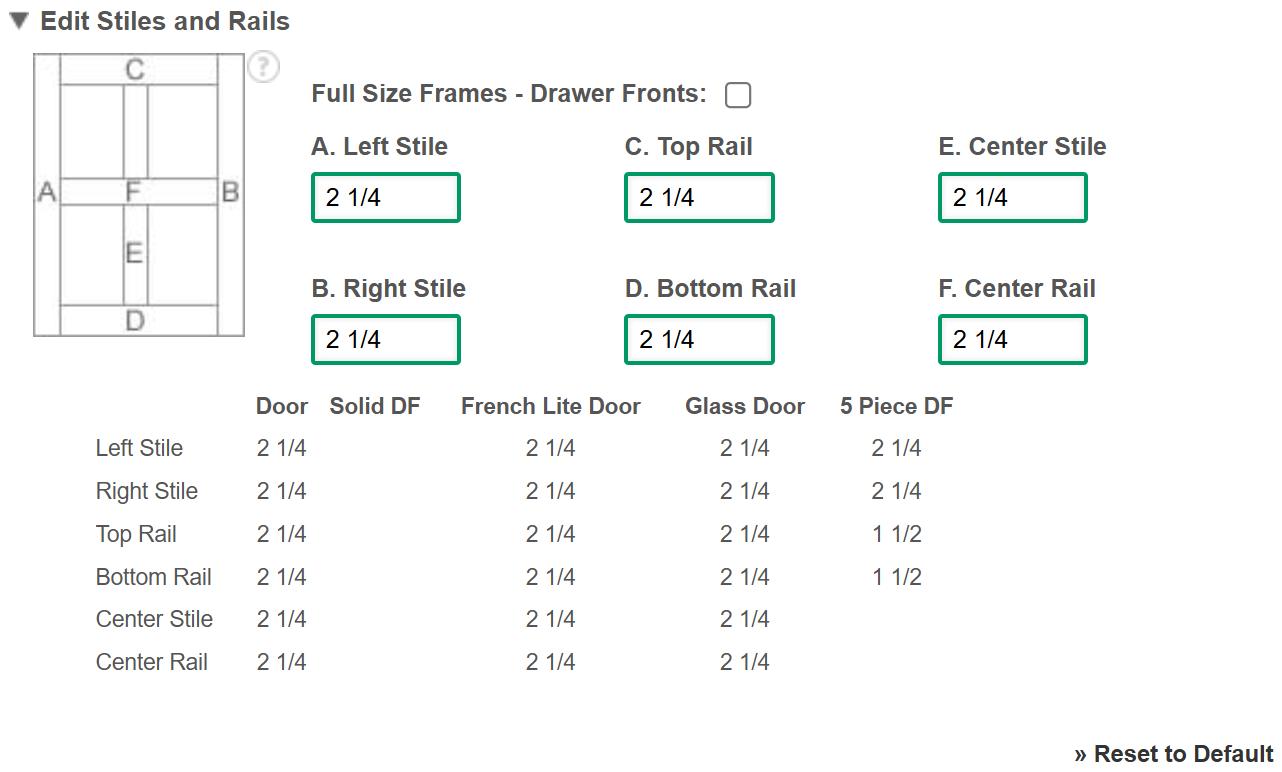
- For Standard 5-Piece Drawer Fronts, leave the default measurements that automatically appear for each stile and rail.
Note: Verify measurements for the Standard 5-Piece DF (Drawer Front) in the chart below boxes A - F.
- Click "Save" at the bottom right.
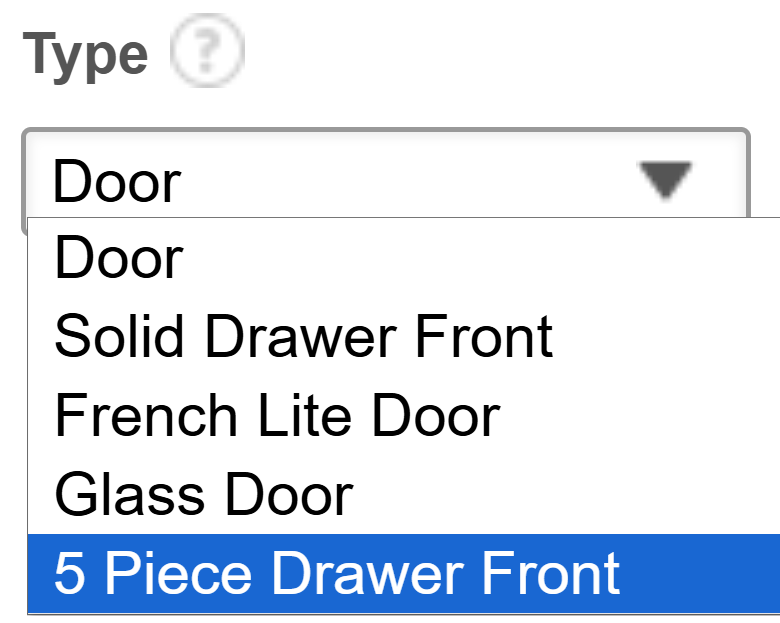
- Select the drop down arrow in the field titled "Type" and click "5-Piece Drawer Front".
Note: Doors, Glass Doors, French Lite Doors and Slab Drawer Fronts can all be added with the 5-piece drawer fronts.
- Enter the quantity, width, height, and any other specifications that apply.
- Select "Add".
Note: After selecting "Add", your Standard 5-Piece Drawer Front will be added as a line item at the bottom of the screen.

- Now to add Full Frame Drawer Fronts to the same order, scroll upwards to the door style header and click "Copy to Edit" on the door style you previously created.

- A new dialogue box will appear asking for a new Room name. Remove "Standard DF". Then, we suggest typing "Full Size DF".
- Click "Copy".
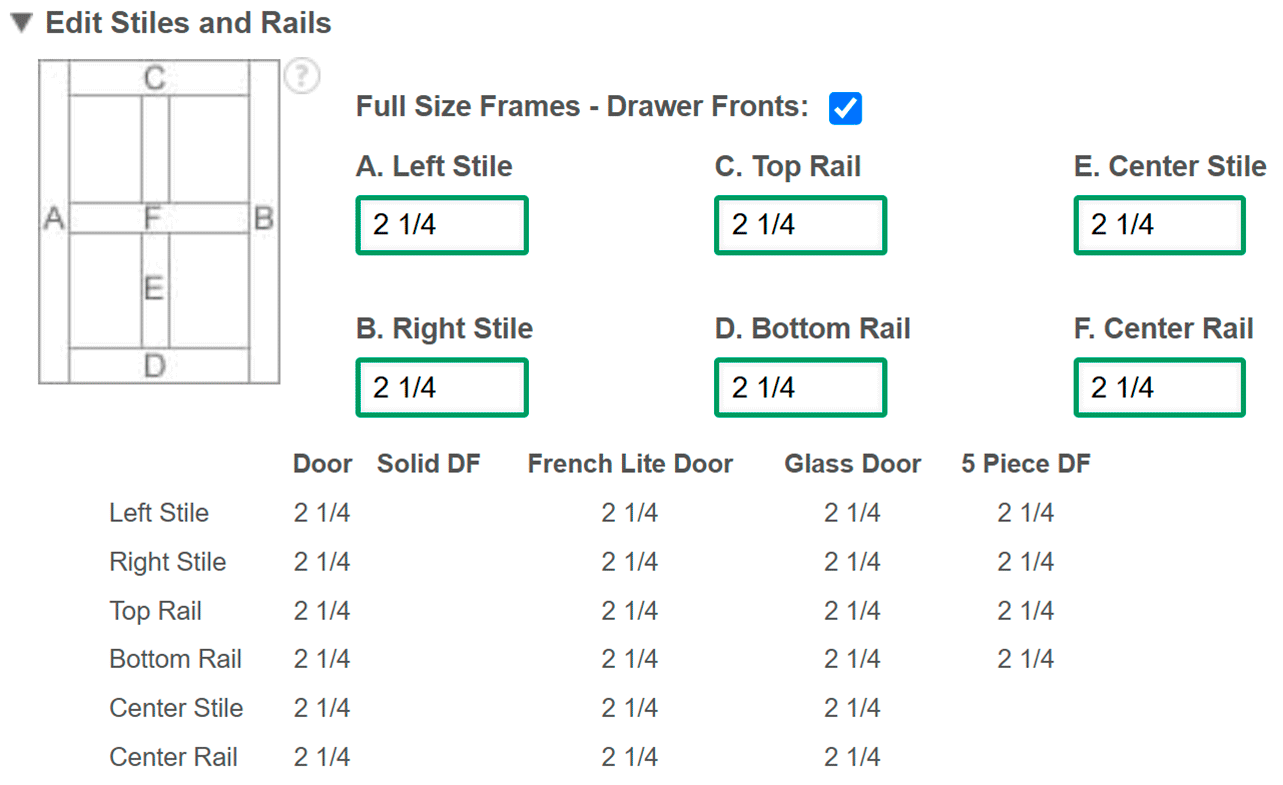
- The next screen will automatically open the section "Edit Stiles and Rails". Click the box to the right of "Full Size Frames - Drawer Fronts". The top rail will automatically match the door style.

- Note: If you are ordering custom frame sizes, enter stile and rail dimensions for the Full Size Drawer Front in boxes A - F. Verify that the dimensions have correctly updated in the chart below boxes A - F. This validates that the dimensions are acceptable.
- Once complete, click "Save".

- Next, select the drop down arrow in the field titled "Type" and click "5-Piece Drawer Front".
- Enter the quantity, width, height, and any other specifications that apply.
- Select "Add".
Note: After selecting "Add", your Full Size 5-Piece Drawer Front will be added as a line item at the bottom of the screen.
- Lastly, select "Build" at the bottom right.
Note: The Standard and Full Size 5-Piece Drawer Fronts will be independently displayed on the main Build page of your order. View the assigned "Room" to differentiate the two styles.

Note: The Standard and Full Size 5-Piece Drawer Fronts will be independently displayed on the main Build page of your order. View the assigned "Room" to differentiate the two styles.
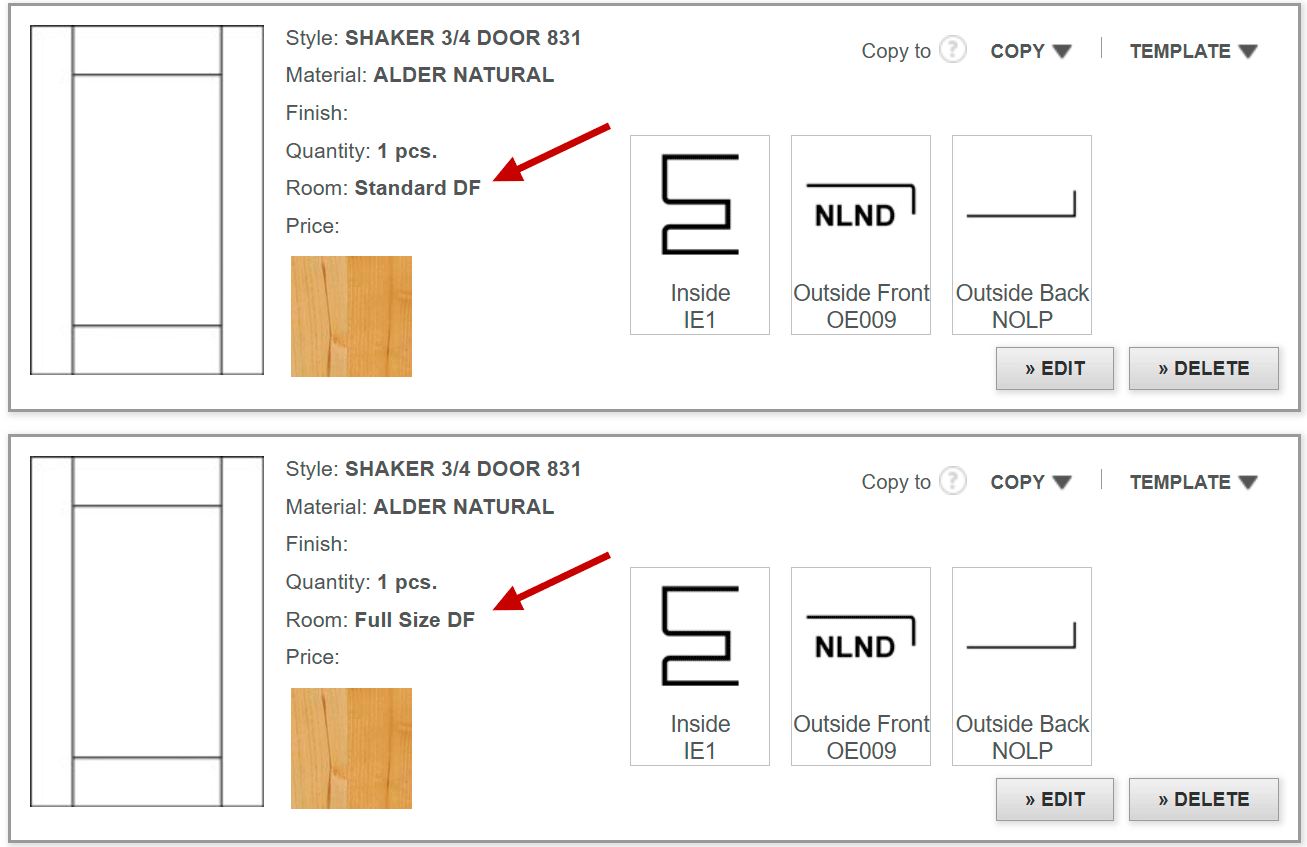
- Continue to build or submit your order, as needed.
Tip: We suggest verifying frame dimensions again on your order's Review page before submitting the order.