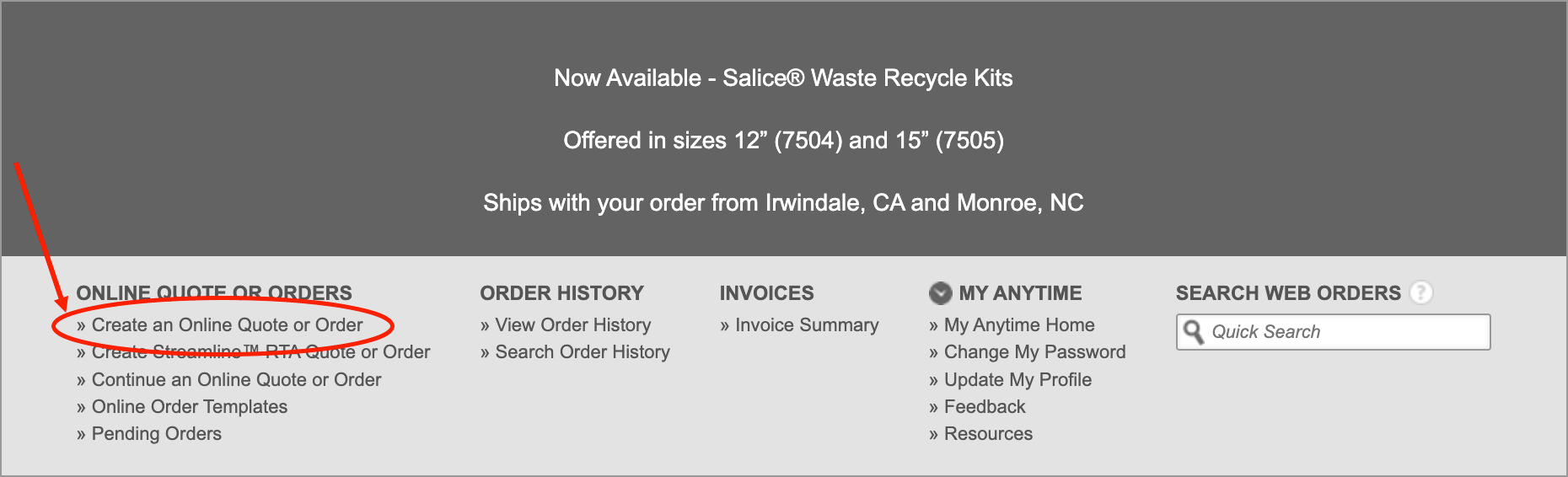
- Login to Anytime® Online by clicking the red “Login” button on the top right of the homepage.
- Choose “My Account” on the top right of the navigation.
- Click “Create an Online Quote or Order” to begin placing your order.
Note: As an order is being created, it will remain as a "quote". Once it is submitted by following the steps below, it will become an "order". You may click out of Anytime® and return later to your quote to continue making edits or to finalize your order.
Shipping/Billing

- Enter a purchase order and job name. These are required fields that will be printed on your packing labels, order acknowledgment, and invoices.
Note: Throughout the ordering process on Anytime®, helpful information is available by clicking the gray question mark icon.
- Edit your contact and shipping information, if necessary.
Note: Default account information can be changed on your Anytime® homepage. View the Learn article "Updating Anytime® Account Information" for details. - Click "Save & Build" to get started.
Build

- Click a product type on the left-hand side under “Build” to begin adding to your order. For example, click the product type “Doors & Drawer Fronts”.
- Confirm your preferred “Unit of Measure”, then type the “Style Code” of your desired door style.
Note: Account settings, including default unit of measure, can be changed from your Anytime® homepage. View the Learn article "Changing Unit of Measurement Settings" for details. - Choose your "Material".
Note: All materials have a face, back and edge material description.
Note: If drop-down selections are not populating, click out of the selected field box and click it again. - Once you’ve completed the details of your Doors & Drawer Fronts, select “Save” at the bottom right.
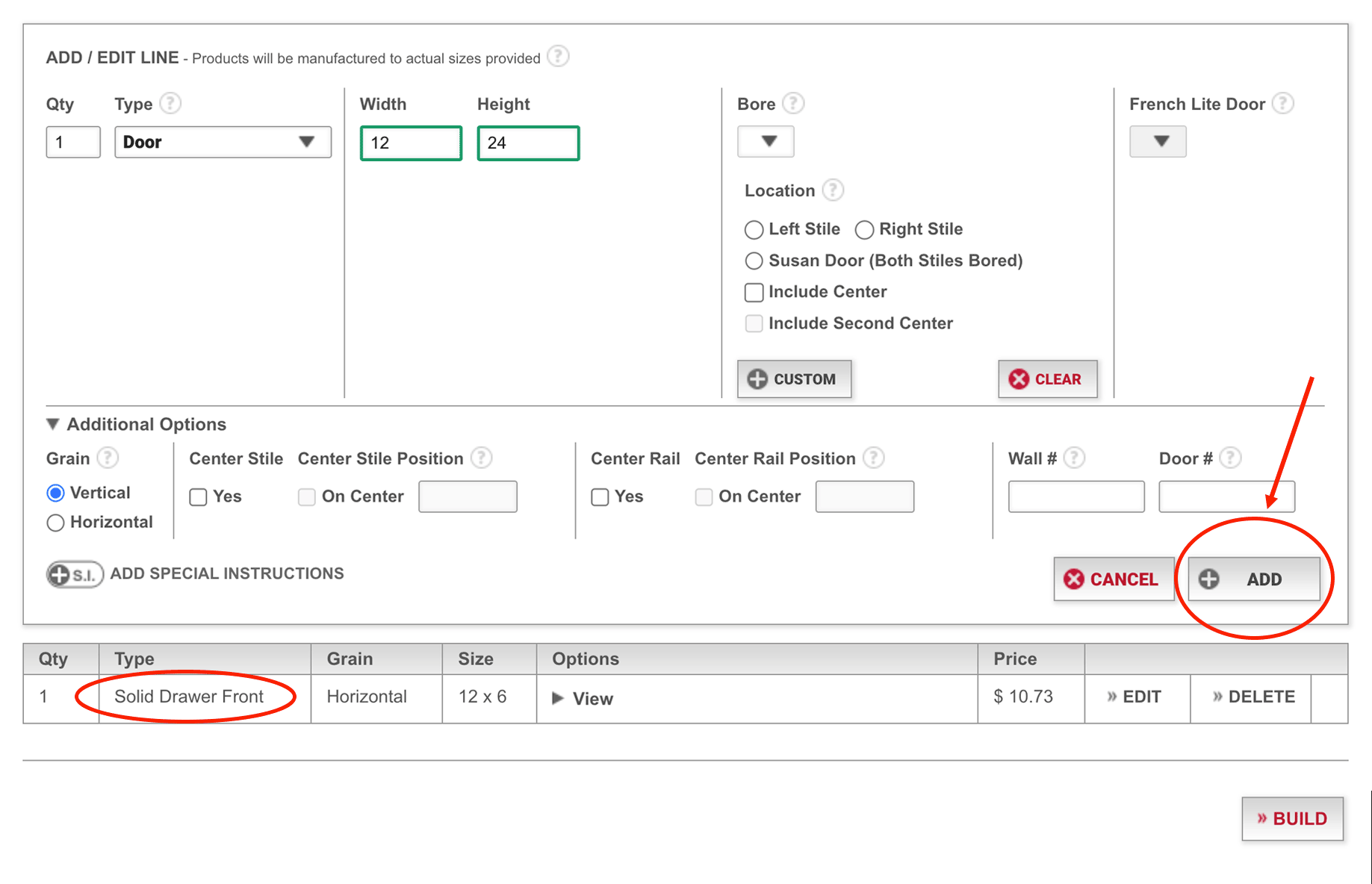
- Next, add the quantity, select the type, specify the width and height, and if applicable, provide the hinge bore details and location.
- Click “Add” at the bottom right when complete.
- Repeat the previous steps to add additional pieces. Then, click “Add”.
Note: The product line items will show at the bottom of the page, confirming that the item has been added to your order.
- Click “Build” to return to your order’s main Build page once all your Doors & Drawer Fronts for this material have been added to the bottom line items.
Note: “Build” at the bottom right will not save your new entries, unless you have clicked “Add” (some product type pages say “Save”). The “Build” button will take you back to your order’s main Build page. - On your order's Build page, choose an additional product type to add to your order.
- Click "Add" or "Save" as you build each item for your order.
Note: The product line items will show at the bottom of the page, confirming that the item has been added to your order.
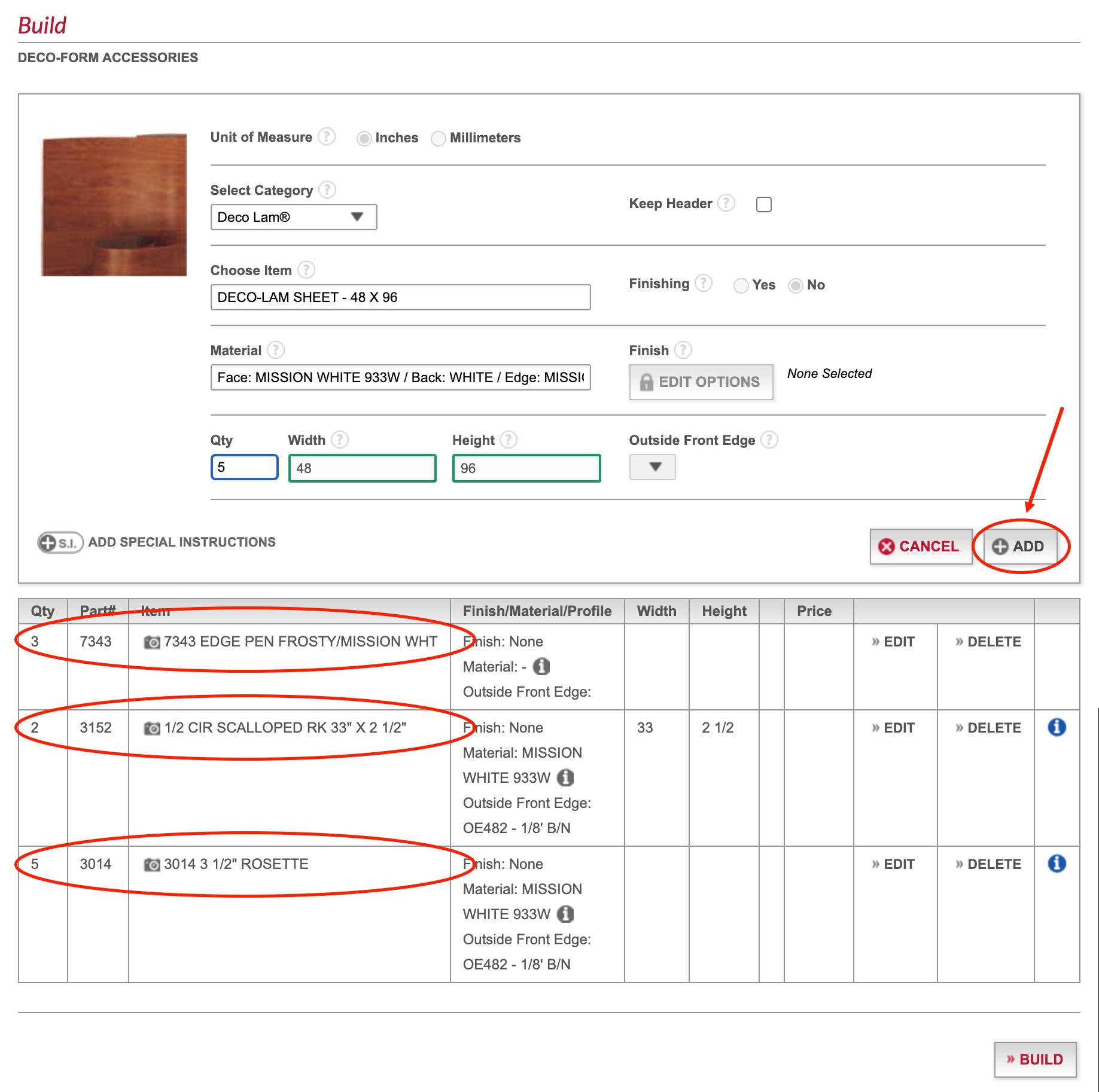
- Click “Build” to go back to your order’s main Build page.
- After all products have been added to the “Build” page, click “Schedule” at the bottom right to view your order’s delivery method and estimated ship date.
Schedule

Note: Anytime® will automatically group products together based on their shipping facility and combined lead time. For orders with multiple lead times, portions of the order can be received as they become available. Click “Best Date” to ungroup the products and receive the assigned lead time for each product. This will incur additional shipping costs.
- Click “Review” at the bottom right to review your order details.
Review

Note: Click “Print” to print a copy of your order summary.
Note: You may click out of Anytime® and return later to your order’s “Review” page to continue making edits or finalize your order.
- Select “Submit Order” to finalize your order.
Complete

- You will receive an email order acknowledgment once your order has been submitted. Please review the order acknowledgment for potential errors and contact Customer Service as soon as possible, if there are any issues with your order details.
- Customer Service:
- Phone: 308-562-3317
- Email: customerservice@decore.com
- Customer Service:
- You will receive an email order confirmation when your order is being processed in production.
- Find submitted orders on Anytime® under "View Order History".
Return to Edit Online Quote
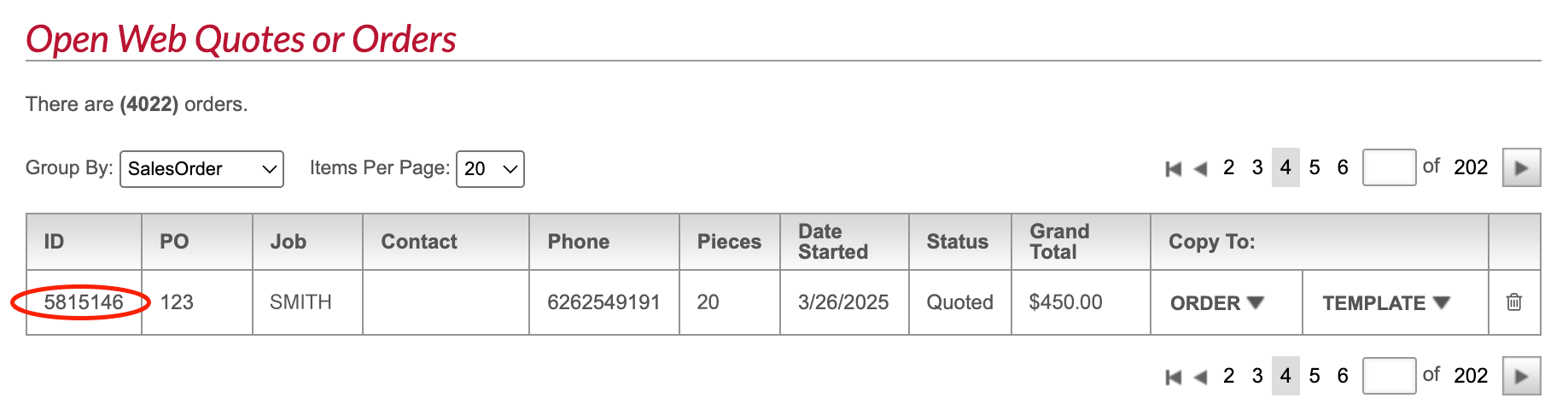
Note: To return to a quote that has not been submitted yet, select “Continue an Online Quote or Order” on the page “My Account”.

Note: Click the order ID to continue editing.